

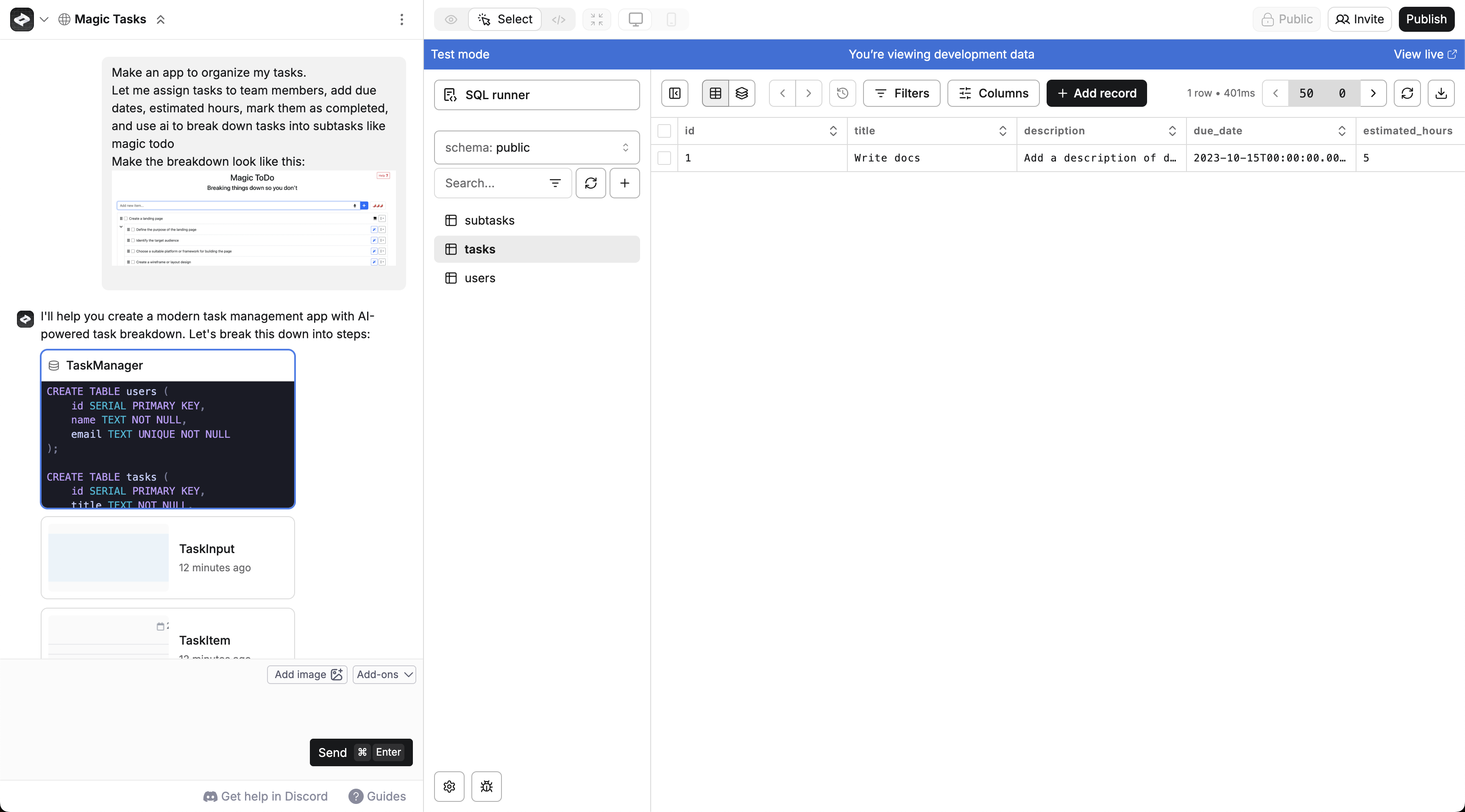
Create comes with built in databases for each project
Overview
Every Create project comes with a free database built in. As you chat with Create, it handles all database details - from designing the structure to writing the code that lets your app save and retrieve data from it. Use databases to:- Store user submissions (forms, feedback, uploads)
- Save content (blog posts, products, galleries)
- Persist data between uses of the app
- Build dynamic data-driven features
Chat
Create automatically updates your database structure & how your app retreives and stores data as you chat. When a feature requires storing data, it:- Designs the database structurebased on your description
- Makes Functionsto save and retrieve data from the database
- Designs the Pages and Componentsto display and interact with the data
- Connects everythingto make sure your Pages use the Functions that retrieve/store data.
1
Creates a tasks table with title, due date, and other fields
2
Creates Functions to save and fetch tasks
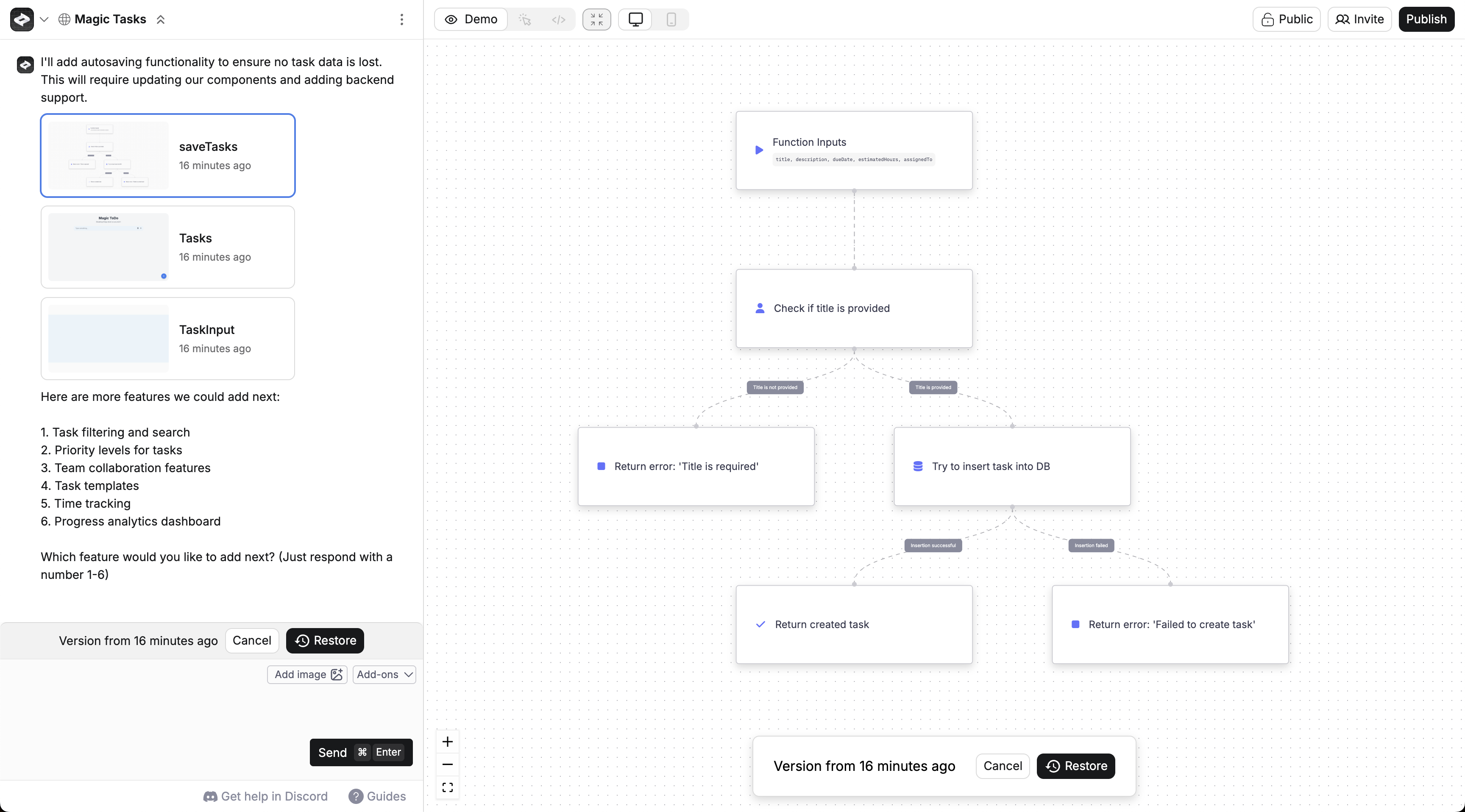
3
Builds a Page with a task list and add form
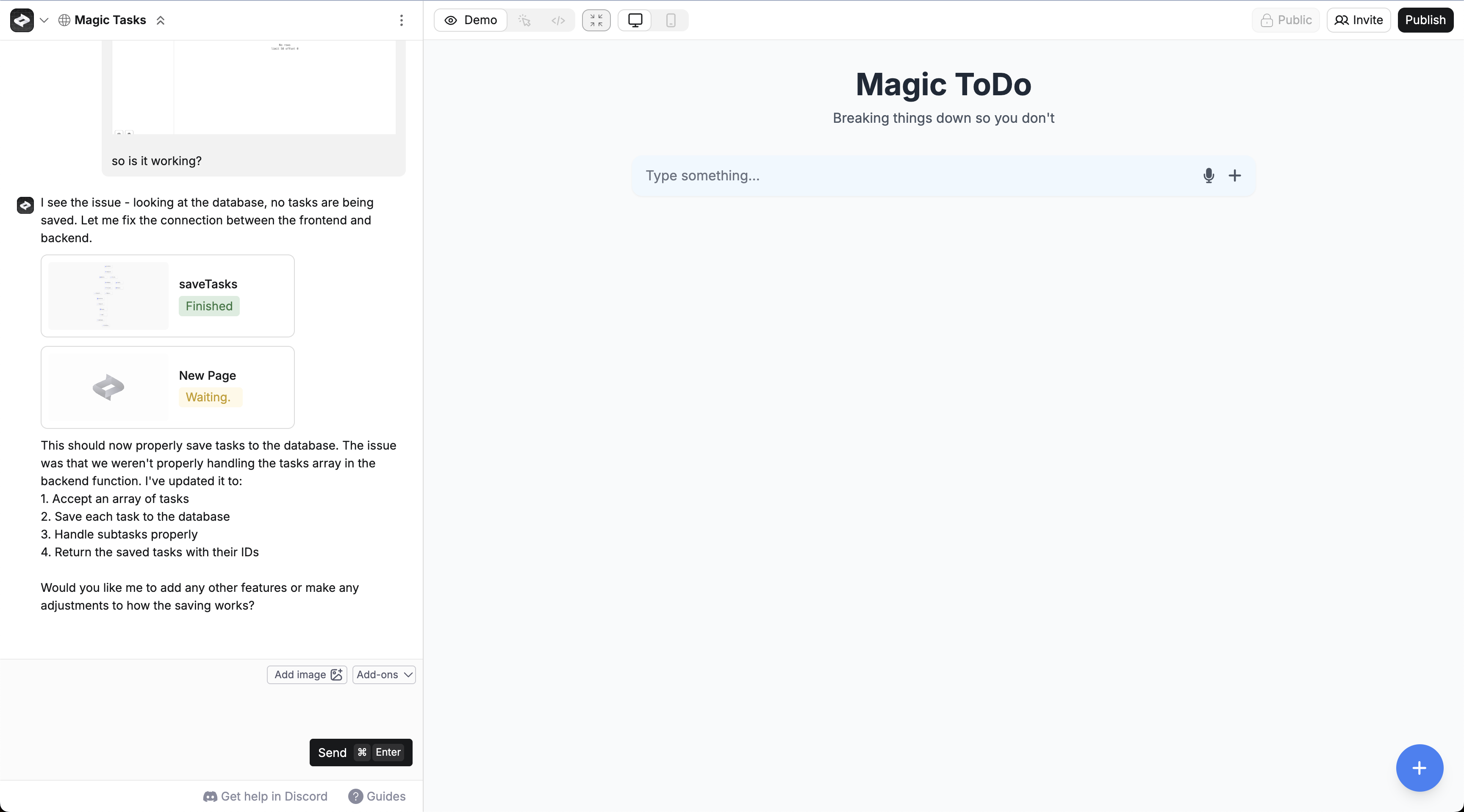
4
Makes your Page use your Functions to save and grab tasks from the database
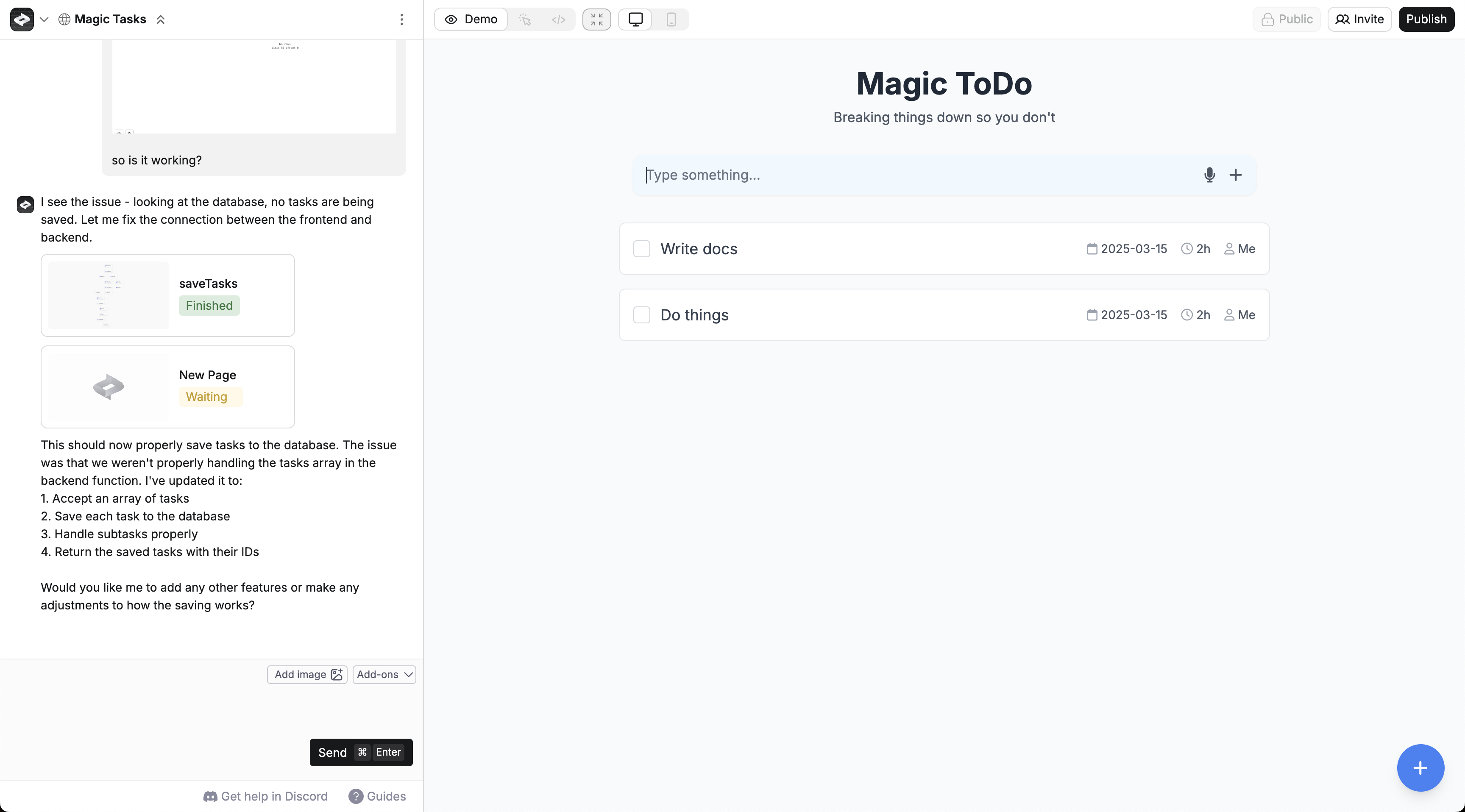
Setting the scene
It helps to start with a specific description of what you want your app to do. Prompt:-
Make the tables needed
- Make a Tasks table with title, description, and comments fields
- Make a Users table with name and avatar fields
- Make a Comments table with text and author fields
- Create Functions to save and fetch tasks, users, and comments
- Build a Page with a task list, add form, and comment list
- Make the Page use your Functions to save tasks when submitted and grab tasks to display
Adding Fields
- Add the description column to the Todos table
- Update Functions to handle the new field
- Modify the UI to display descriptions
Removing Fields
- Remove the priority column
- Update queries to exclude the field
- Clean up any UI elements showing priority
Adding Tables
- Make a new Comments table
- Link it to the Todos table
- Add UI for viewing/adding comments
- Handle saving comments to the database
Changing Structure
- Convert the due_date field to a status field
- Update existing data
- Modify the UI to show status options
Relationships
- Add user relationships to todos
- Update queries to fetch user data
- Show assignee info in the UI
Filling Data
- Generate 10 sample todos with different statuses and assignees based on your structure
- Insert the data into your database
- Preserve relationships between tables
Validation
- Add validation rules to the database
- Update Functions to check data
- Show validation errors in the UI
Viewing & Editing Data
Create comes with a built-in database viewer for manual edits to your data. You can quickly verify that data is being stored in the right way when you use your app. Access it from:- Chat - tap the database
- Project Selector- choose your database name
- See all tables
- Edit individual rows
- Sort and filter data
- Download data in bulk
- Run custom SQL queries to fetch data
- Make a newPage
- Describe your tool and how it should update the database
- Try out your UI
Changes in Demo mode in the Builder use a test database. This lets you experiment safely without affecting your live data.
Test vs. Live DB
Create maintains separate test and live databases for each project: Test Database- Used in Demo mode from the builder
- Allows you to make sure your app is saving data correctly before publishing
- Used in your published app
- Access your live database from the builder
Publishing
When you publish your app, Create automatically:- Creates your live database
- Applies the latest structure from the Test database to your Live database so that it has the same tables and fields
- Runs your app with that structure
Errors
Here are some good ways to troubleshoot common errors:Data isn’t saving or retrieving
If data isn’t saving when you use your app, there are 3 common failure points to check. Go in this order to test each isolation:1. Database Structure
How to check:- Open the database viewer
- Verify tables and fields match what you expect
- Describe the correct structure you want in chat
- Example: “Update the Tasks table to have title, description, and dueDate fields”
- Create will modify the database to match
2. Function -> Database
How to check:- Identify which function saves or retrieves data from the database. Tap on it.
- Open theTest Runner(3-dot menu > Test)
- Enter sample data and run the test
- Check database viewer to verify data was saved
- Delete test records if needed
- Copy any error messages
- Paste them into the function chat
- Ask Create to fix the specific error
- Example: “I see this error when I run saveTask and test it with this data: [error] [example data]“
3. UI -> Function
How to check:- Try the app in Demo mode from the UI
- Check that data is being saved when you use the app in the database viewer
- Verify your page/component references the correct function
-
Type
/in chat to see if function is linked - Try the flow in Demo mode
- Watch database viewer to see if records appear
- Verify your page/component references the correct function
- Example: “Connect the taks form to the saveTask function when I submit a task”
- Create will update the code to properly wire everything together
Database Management Tools
Database Resets
You can reset your development (builder) database schema to match the state of your published database. This is helpful if you’ve made changes to your database in the builder that can’t be safely applied to your published database.
The database reset button is located in the top right corner of the database viewer in demo mode
- When you’ve made schema changes that conflict with your published database
- When you want to start fresh with your development database
- When you’re stuck with migration conflicts during publishing
- Go to the database viewer in demo mode
- Click the reset button in the top right corner
FAQ
Will this scale?
Will this scale?
Yes. Create’s built in databases are designed to scale. Under the hood, it’s PostgreSQL, which is powerful and scalable. We partner with Neon to autoscale your database as your app grows.
How much data can I store?
How much data can I store?
Free plans include 100mb of storage per database. You can upgrade to a paid plan to increase this.
Can I import existing data?
Can I import existing data?
Not yet, we will be working on an import function in the future
How do I connect to external databases?
How do I connect to external databases?
Use Functions to connect to external databases like Supabase or your own backend.
Is my data backed up?
Is my data backed up?
Yes, databases are automatically backed up. Contact support if you need to restore data.
Can I write custom queries?
Can I write custom queries?
Create handles making queries to your database automatically. For custom queries, create a Function and describe what you need. You can then use your Function. Or use the built in SQL editor in the database viewer.
How do I reset my development database?
How do I reset my development database?
You can reset your development (builder) database schema to match the state of your published database. This is helpful if you’ve made changes to your database in the builder that can’t be safely applied to your published database. To reset your database, go to the database viewer in demo mode and click the reset button in the top right corner. Note: This will delete ALL data in your builder database. Your published database will remain untouched.
How do I convert a V1 database to V2?
How do I convert a V1 database to V2?
We now support converting legacy V1 databases to the new V2 format. When you convert: 1) A new V2 database is created for you, 2) Your data is migrated from V1 to V2, 3) A function is created in your project to access the data, 4) Your apps will automatically start using the new data store. To convert your database, go to your V1 database at www.create.xyz/database/[DATABASE_ID] and click the conversion option in the top right dropdown menu. After conversion, you can use the new database like any other V2 database in your project.
I have a legacy database from an app built prior to February 2025
I have a legacy database from an app built prior to February 2025
We still have documentation for you, linked here.
Need help? Join our Discord community or email hello@create.xyz
Helpful Database Terms
Create handles the technical details of your database, but understanding some key concepts can help you work more effectively. Think of a database as a collection of connected spreadsheets:- A table is like a spreadsheet (e.g., “Users”, “Products”)
- Fields (or columns) are the types of information stored (e.g., “name”, “email”)
- Rows are individual entries
- Relationships connect data between tables using foreign keys
| Term | Definition | Example |
|---|---|---|
| Schema | The structure of your database (tables and fields) | Your app’s blueprint showing Users table with name, email fields |
| Query | Instructions to get or save data | ”Get all products where price < $100” |
| Join | Combining data from different tables | Showing posts with their authors’ names from the Users table |
| Foreign Key | A field that references another table | Post’s authorId connects to User’s id |
| SQL | The language databases understand | Create writes this for you! |
| Migration | Changes to your database structure | Adding a “phone” field to Users table |